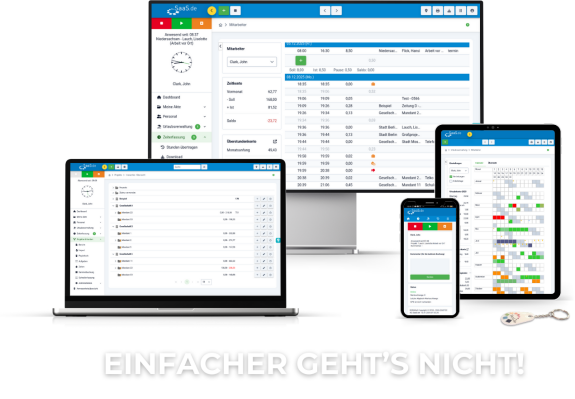
How do I set up short-time working at SaaS.de?
As Admin:
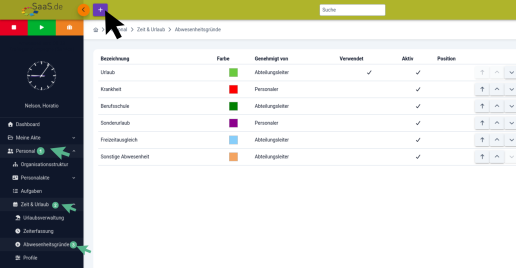
In the dashboard, select the module "Personnel" (1), now open "Time & Leave" (2), there you will find "Absence Reasons" (3)
To add further reasons for absence, in this case short-time working, click on the plus sign
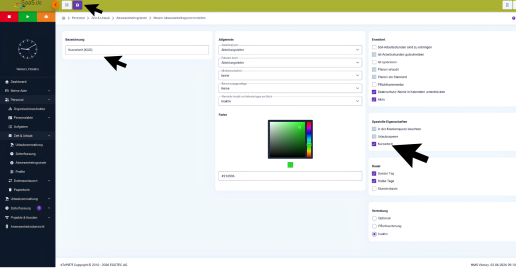
Enter the name "Short-time work" and select Short-time work under "Specialproperties".
Do not forget to save!
Enter "KUG" as the abbreviation.
Now you can set short-time working or your employees can apply for short-time working, we will show you the different methods in the next step.
Apply for short-time working:
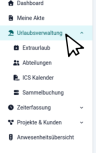
In your dashboard, select the module "Leave management"
module with a mouse click.
This will open your holiday management with your calendar.
Now select a time frame for which you would like to apply for short-time working and click on it.
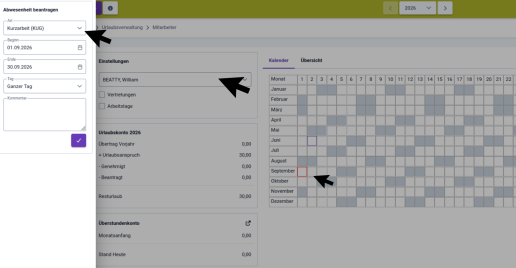
A window will then open with the heading "Request absence". In the "Type" drop-down menu, select "KUG" as the reason.
You can then enter the time frame with Start and End, as well as the scope under "Day", whereby a distinction is made between full day and half day.
You can now leave a comment as required. You have now applied for short-time working.
Apply for short-time working Collective posting:
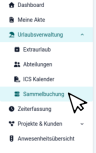
Select the Holiday management module in your dashboard by clicking on it.
Then select the sub-item "Collective booking" with a mouse click.
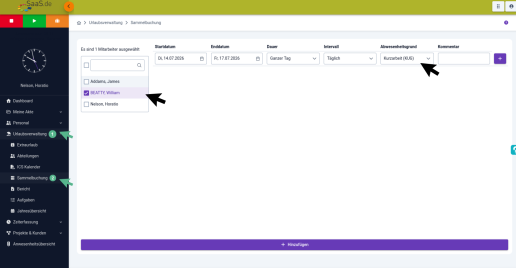
You can now book your employees' absences in the Leave management→ Collective booking area.
-
As before, select the absence reason "KUG"
-
Specify the period via "Start date" and "End date"
-
Differentiate between "Full day" and "Half day" for the duration
-
In addition, an interval can be set which defines "Daily" "Weekly" "14-day" or "28-day" intervals at which the booking is made.
-
Optionally, you can leave a comment with notes or additional information about the booking
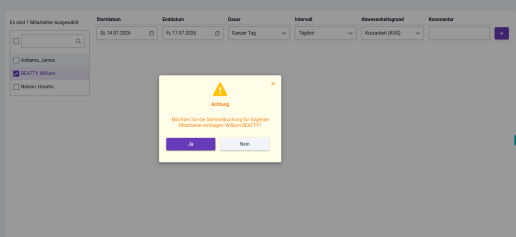
Attention!
After clicking on the Add button, a security enquiry appears which must be carried out for confirmation.
The entry of the collective booking cannot be cancelled.
If it later transpires that the collective entry was incorrect, all affected days must be removed individually.